1 What is Defender Control?
Defender Control is a lightweight, portable utility that allows you to easily disable or enable Windows Defender (Windows Security) in Windows 10 and Windows 11. Unlike complex registry modifications or command-line tools, Defender Control provides a simple, one-click solution.
Key Benefits:
- One-click disable/enable
- No installation required
- Completely reversible
- Works on Windows 10/11
- Safe and reliable
When to Use:
- Installing alternative antivirus
- Software development testing
- Large file transfers
- Gaming performance
- System troubleshooting
Important Note
Disabling Windows Defender reduces your system's security. Only disable it temporarily or if you have alternative security measures in place. Always re-enable it when done.
2 Before You Start
Prerequisites
Administrator Rights
You must have administrator privileges to modify Windows Defender settings.
Windows 10/11
Compatible with all versions of Windows 10 and Windows 11.
Tamper Protection Off
Disable Tamper Protection in Windows Security first.
Disabling Tamper Protection (Important!)
Critical Step
If Tamper Protection is enabled, Defender Control may not work properly. Follow these steps to disable it first:
-
1
Open Windows Security
Press Windows + I → Update & Security → Windows Security
-
2
Go to Virus & threat protection
Click on "Virus & threat protection" in the left sidebar
-
3
Open protection settings
Click "Manage settings" under "Virus & threat protection settings"
-
4
Turn OFF Tamper Protection
Toggle the "Tamper Protection" switch to OFF
3 Download & Setup
Download Process
- 1
-
2
Download the latest version
Get Defender Control v2.1 (latest version)
-
3
Extract (if needed)
Some downloads come as ZIP files - extract to a folder
-
4
No installation needed!
It's a portable tool - just run the .exe file
Download Sources:
- Sordum.org (Official)
- GitHub Repository
- VirusTotal: Clean
File Size Check
The file should be around 50KB. Larger files may be suspicious.
Antivirus Software May Block Download
Some antivirus programs may flag Defender Control as potentially unwanted software (PUA) because it modifies Windows Defender settings. This is a false positive.
If blocked:
- Add an exception in your antivirus software
- Temporarily disable real-time protection
- Download from official sources only
4 First Run
Running Defender Control
-
1
Right-click the .exe file
Right-click on DefenderControl.exe
-
2
Select "Run as administrator"
This is required for proper functionality
-
3
Accept UAC prompt
Click "Yes" when Windows asks for permission
-
4
Interface loads
The main window will appear showing current status

Defender Control main interface
Understanding the Interface
Status Display
- "Windows Defender is running" = Enabled
- "Windows Defender is turned off" = Disabled
Action Buttons
- Disable Windows Defender
- Enable Windows Defender
5 Disabling Windows Defender
Security Warning
Disabling Windows Defender reduces your system's security. Only proceed if you understand the risks and have alternative protection measures in place.
Step-by-Step Process
-
1
Confirm Defender is running
The interface should show "Windows Defender is running"
-
2
Click "Disable Windows Defender"
The red button in the interface
-
3
Wait for process to complete
Usually takes 2-5 seconds
-
4
Verify status change
Interface should now show "Windows Defender is turned off"

Defender Control showing Windows Defender is disabled
What Happens When You Disable
Registry Changes
- • DisableAntiSpyware = 1
- • Real-time protection off
- • Cloud protection disabled
Services Affected
- • Windows Defender Service
- • Network Inspection Service
- • Security Center notifications
Visible Changes
- • Windows Security shows warnings
- • System tray icon changes
- • Action Center notifications
6 Re-enabling Windows Defender
Security Best Practice
Always re-enable Windows Defender when you're done with your task. Leaving it disabled permanently exposes your system to security risks.
Re-enabling Process
-
1
Run Defender Control as admin
Right-click → "Run as administrator"
-
2
Verify current status
Should show "Windows Defender is turned off"
-
3
Click "Enable Windows Defender"
The green button in the interface
-
4
Restart (if needed)
May require restart for full activation
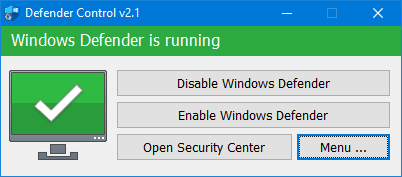
Defender Control showing Windows Defender is running
Verifying Defender is Active
Check in Windows Security
- 1. Press Windows + I
- 2. Go to Update & Security → Windows Security
- 3. Click "Virus & threat protection"
- 4. Verify "Real-time protection" is ON
System Tray Icon
- • Windows Security icon should appear
- • No red warning notifications
- • Shield icon shows protection active
7 Best Practices
Do's
Always run as administrator
Required for proper functionality and to avoid permission errors.
Disable Tamper Protection first
Prevents Windows from blocking the changes you want to make.
Re-enable when done
Restore protection after completing your task.
Keep Defender Control updated
Use the latest version for best Windows 11 compatibility.
Use alternative protection if needed
Install another antivirus if disabling permanently.
Don'ts
Don't leave Defender disabled
Permanent disabling without alternative protection is risky.
Don't run without admin rights
Will result in permission errors and failed operations.
Don't ignore antivirus warnings
Add proper exclusions instead of disabling antivirus entirely.
Don't use old versions
Older versions may not work with Windows 11 updates.
Don't panic if something goes wrong
Check our troubleshooting guide for solutions.
8 Quick Troubleshooting
Most Common Issues
❌ "Access Denied" Error
Solution: Run as administrator
Right-click → "Run as administrator"
❌ Defender Won't Disable
Solution: Disable Tamper Protection
Windows Security → Virus & threat protection → Settings
❌ Tool Gets Deleted
Solution: Add antivirus exclusion
Add DefenderControl.exe to your antivirus exclusions
❌ Windows 11 Compatibility
Solution: Update to v2.1
Download latest version with Windows 11 support
Quick Fixes
Universal Troubleshooting Steps:
- 1 Restart as administrator
- 2 Disable Tamper Protection
- 3 Add antivirus exclusion
- 4 Update to latest version
- 5 Restart computer if needed