Common Issues & Solutions
Detailed solutions for frequently encountered problems
Issue: Windows Defender Won't Disable
Symptoms:
- Defender Control shows "Windows Defender is running" even after clicking disable
- Real-time protection remains enabled
- Windows Security app still shows protection is on
Possible Causes:
- Group Policy restrictions
- Third-party security software conflict
- Windows Defender Tamper Protection enabled
- Insufficient permissions
Solutions:
Step 1: Disable Tamper Protection
- 1. Open Windows Security (Windows + I → Update & Security → Windows Security)
- 2. Go to Virus & threat protection
- 3. Click "Manage settings" under Virus & threat protection settings
- 4. Turn OFF Tamper Protection
- 5. Run Defender Control again
Step 2: Check Group Policy
- 1. Press Windows + R, type "gpedit.msc"
- 2. Navigate to: Computer Config → Admin Templates → Windows Components → Windows Defender Antivirus
- 3. Check if "Turn off Windows Defender Antivirus" is set to "Enabled"
- 4. If not, set it to "Not Configured" or "Disabled"
Step 3: Use Safe Mode
- 1. Boot into Safe Mode
- 2. Run Defender Control as administrator
- 3. Disable Windows Defender
- 4. Restart normally
Issue: "Windows Defender Cannot Be Started"
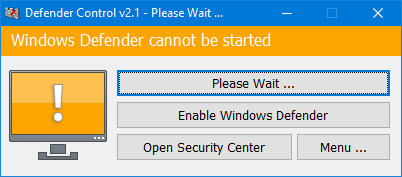
When This Happens:
- After using Defender Control to disable, then trying to re-enable
- Windows Defender services are corrupted or stopped
- Registry entries are inconsistent
Complete Fix:
Method 1: Service Restart
- 1. Press Windows + R, type "services.msc"
- 2. Find "Windows Defender Antivirus Service"
- 3. Right-click → Properties → Set to "Automatic"
- 4. Click "Start" if not running
- 5. Restart computer
Method 2: Command Line Fix
sfc /scannow
dism /online /cleanup-image /restorehealth
powershell -ExecutionPolicy Bypass -Command "& {$manifest = (Get-ChildItem 'C:\ProgramData\Microsoft\Windows Defender\Platform\4.*\MpAsDesc.dll' | Sort-Object LastWriteTime -Descending | Select-Object -First 1).FullName; $loadResult = [Reflection.Assembly]::LoadFile($manifest)}"
Method 3: Windows Security Reset
- 1. Open PowerShell as Administrator
- 2. Run:
Get-AppxPackage Microsoft.SecHealthUI -AllUsers | Reset-AppxPackage - 3. Restart computer
- 4. Try enabling Defender Control again
Issue: Windows 11 Compatibility Problems
Common Windows 11 Issues:
- Tool doesn't work on Windows 11 22H2
- Error messages about unsupported OS
- Changes don't persist after Windows Updates
- Windows Security app shows different status
Good News!
Defender Control v2.1 fully supports Windows 11, including the latest 22H2 update. Make sure you're using the latest version.
Windows 11 Specific Solutions:
Update to Latest Version
Download Defender Control v2.1 specifically designed for Windows 11:
Download v2.1Disable Smart App Control
- 1. Open Windows Security
- 2. Go to App & browser control
- 3. Turn OFF Smart App Control
- 4. Restart and try again
Windows 11 Registry Method
For advanced users only:
reg add "HKLM\SOFTWARE\Policies\Microsoft\Windows Defender" /v DisableAntiSpyware /t REG_DWORD /d 1 /f
Issue: Third-Party Antivirus Interference
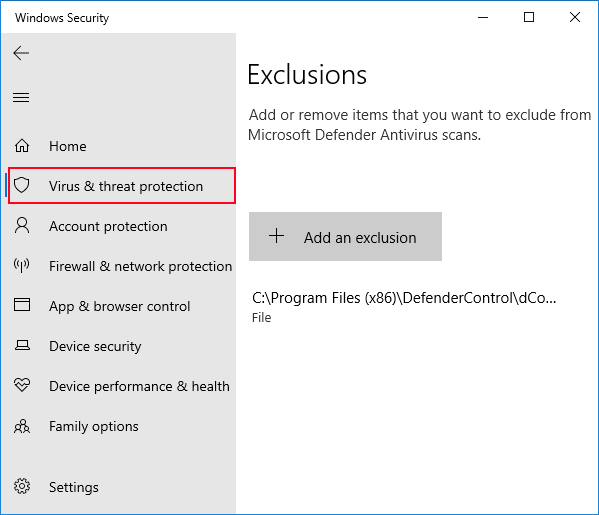
Signs of Interference:
- Defender Control gets deleted automatically
- Quarantined by your antivirus
- Tool crashes or doesn't respond
- Permission errors despite running as admin
Solutions by Antivirus:
🔵 Norton/Symantec
Add to exclusions in Settings → Antivirus → Scans and Risks → Exclusions/Low Risk
🟠 McAfee
Real-Time Scanning → Excluded Files → Add the DefenderControl.exe file
🔴 Avast/AVG
Settings → General → Exceptions → Add Exception → File Path
🟣 Bitdefender
Protection → Antivirus → Settings → Exclusions → Add Application
🟢 Kaspersky
Settings → Additional → Threats and Exclusions → Exclusions → Add